


Setting up Multi-Factor Authentication (MFA) on your NSU Office 365 account is a simple process. MFA provides an additional layer of security by requiring you to verify your identity using the Microsoft Authenticator app when signing in.
This guide explains how to set up MFA using the Microsoft Authenticator app.
You will need:
-
- Your NSU email address and password
- A mobile device (smartphone or tablet)
- The Microsoft Authenticator app installed on your mobile device
- Internet access
Step 1: Sign In to your NSU account
Sign in to your NSU account using your NSU email address and password. You can access accounts using either of the following:
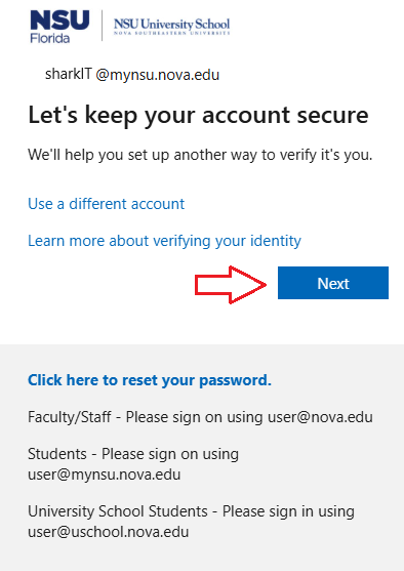
Enter your NSU Email and Password. When prompted to begin setting up MFA, select Next
Step 2: Install Microsoft Authenticator
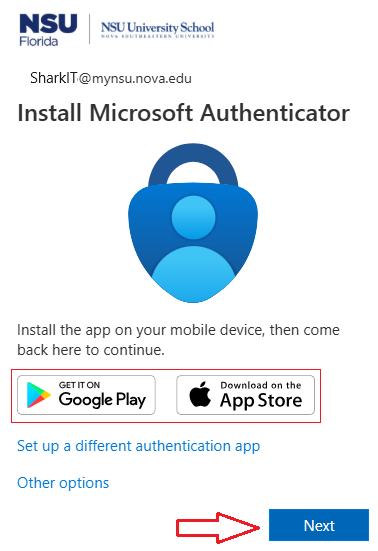
If Microsoft Authenticator is not already installed on your mobile device, download and install it.
-
- Android: Get it on Google Play.
- iPhone/iPad: Download on the App Store.
Once the app is installed, return to your computer and select Next.
Step 3: Set Up Microsoft Authenticator
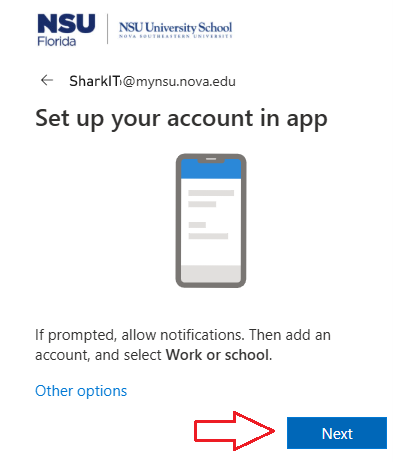
Open the Microsoft Authenticator app on your mobile device. If prompted, Allow Notifications. Then:
-
- Select Add Account (+).
- Select Work or school account.
- Select Scan QR code.
- Select Next on your computer.
Step 4: Scan the QR Code
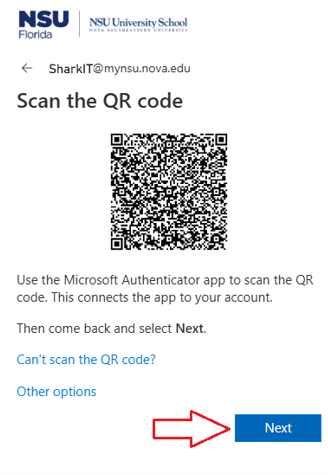
Use the Microsoft Authenticator app on your mobile device to scan the QR code displayed on your computer screen.
Select Next after successfully scanning the QR code.
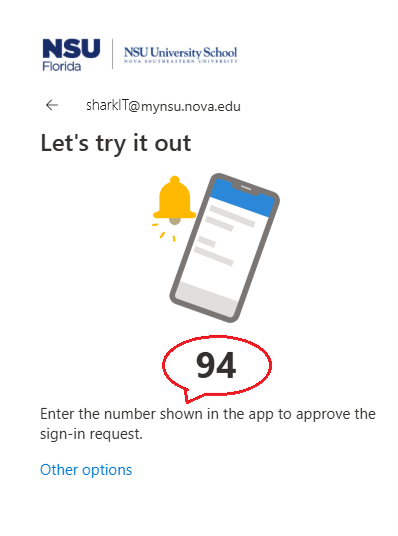
Step 5: Approve the Sign-In Request
Microsoft will send a test sign-in request to your mobile device.
When prompted:
-
- Check your mobile device for the Microsoft Authenticator notification.
- Open the notification.
- Enter the number displayed on your computer into the Microsoft Authenticator app.
- Approve the sign-in request.
Step 6: Complete MFA Setup
Once the verification is successful, select Done to complete the setup.
Your Microsoft Authenticator app is now registered with your NSU account.
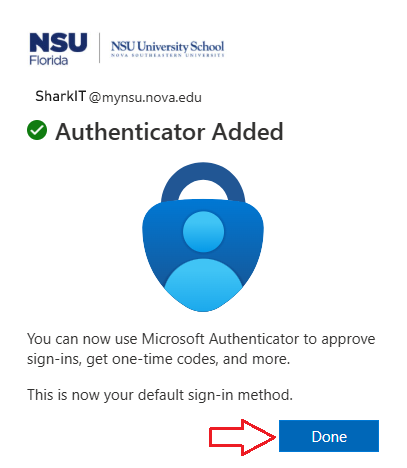
Select Done.
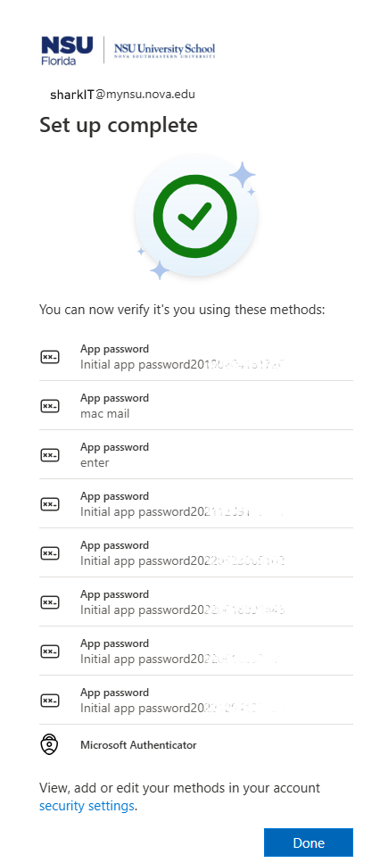
MFA Setup Complete
You can now use Microsoft Authenticator to:
-
- Approve sign-in requests
- Enter verification codes when required
- Help protect your NSU Office 365 account
Microsoft Authenticator is now your default MFA sign-in method.
Need Help?
If you experience issues setting up MFA or cannot access your NSU account, contact
the CTS Shark IT for assistance.
SharkLink
SharkLink is NSU's online portal. With a single username and password, students, alumni, faculty, and staff members can easily access many online university applications.
Quick Guide
Students (PDF)Microsoft Online Archive
Faculty and Staff (PDF)
Current Hours of Operation
Monday-Friday: 8:30 a.m. – 5 p.m.
Saturday: Closed
Sunday: Closed
Closed on University Holidays
Holiday Schedule
Help Number for Students:
(954) 262-4357
Toll Free:
800-541-6682 ext. 24357
Help Number for Staff:
(954) 262-0070