


- Open Finder.
- Navigate to the Menu Bar click Go > Connect to Server… or you may use the command ⌘ + K keyboard shortcut.

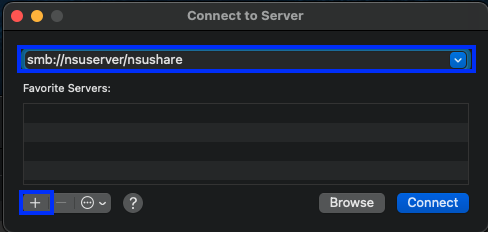
- In the Connect to Server window enter smb://servername/sharename. In the example provided below the servername = nsuserver and the sharename = nsushare. If you have multiple share drives that you access you can click the + at the lower
left of the window to add the share drive as a Favorite Server, for quicker access in the future. Then click Connect.
- A window will appear notifying you of the server you are trying to access. Click Connect.

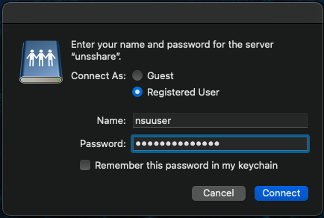
- You must connect to the share as Registered User. Your Name = NSU Username. Your Password = NSU Password. Once each field is entered, click Connect.
- A successful mapping will populate the share drive in Finder. Under the Locations section of the Sidebar, you will see the servername. While on the Toolbar you will see the sharename.
SharkLink
SharkLink is NSU's online portal. With a single username and password, students, alumni, faculty, and staff members can easily access many online university applications.
Quick Guide
Students (PDF)Microsoft Online Archive
Faculty and Staff (PDF)
Current Hours of Operation
Monday-Friday: 8:30 a.m. – 5 p.m.
Saturday: Closed
Sunday: Closed
Closed on University Holidays
Holiday Schedule
Help Number for Students:
(954) 262-4357
Toll Free:
800-541-6682 ext. 24357
Help Number for Staff:
(954) 262-0070