


The first step to accessing your NSU resources through Citrix is to install the Citrix Workspace app on your device.
If you are accessing NSU resources from a home or personal computer, follow the instructions below to install and configure Citrix Workspace.
Step 1: Install Citrix Workspace
Select the appropriate download for your device.
macOS
Download the Citrix Workspace app for Mac: citrix.com/downloads/workspace-app/mac
-
- Under Citrix Workspace app for Mac, select the most recent version or the version compatible with your device.
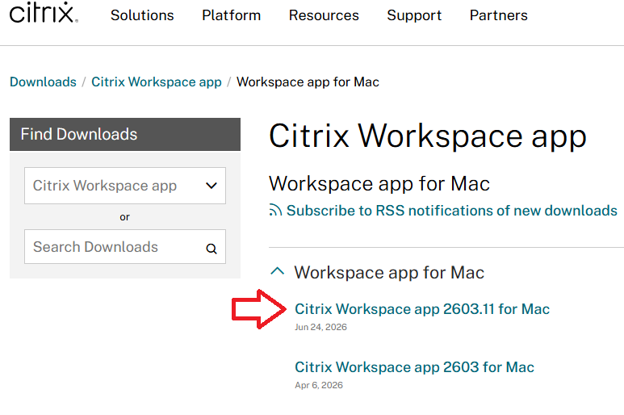
- Review the release date and ensure you are downloading the appropriate version compatible with your macOS.
- Select Download to begin the installation.
- Go to Step 2 to complete the installation.
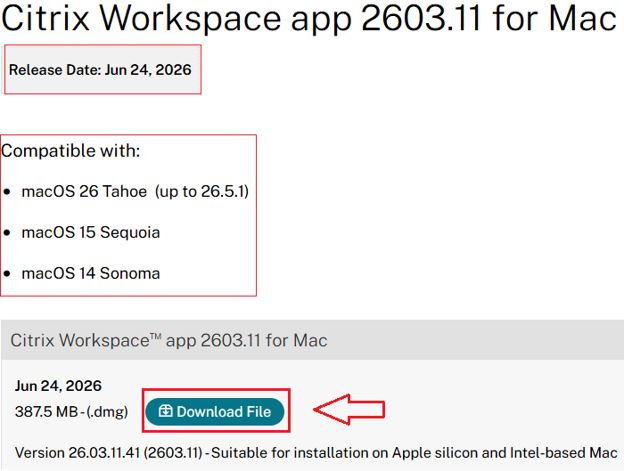
- Under Citrix Workspace app for Mac, select the most recent version or the version compatible with your device.
Windows
Download the Citrix Workspace app for Windows: citrix.com/downloads/workspace-app/windows/
-
- Under Citrix Workspace app for Windows—Current Release, select the most recent version or the version compatible with your device.
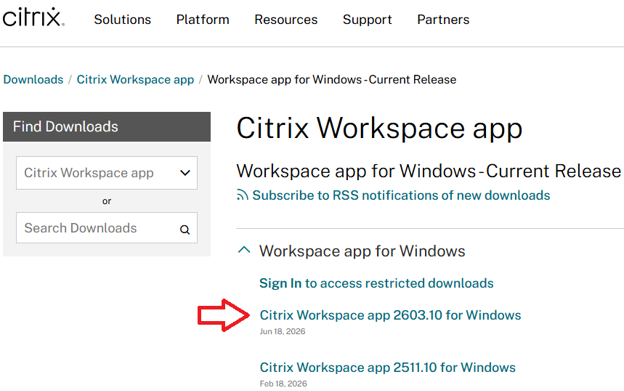
-
Review the release date and ensure you are downloading the appropriate version compatible with your Windows operating system.
-
Select Download to begin the installation.
-
Go to Step 2 to complete the installation.
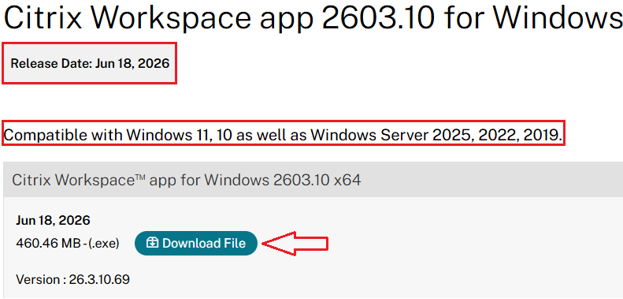
- Under Citrix Workspace app for Windows—Current Release, select the most recent version or the version compatible with your device.
Step 2: Install Citrix Workspace
After downloading the installer, do the following:
-
- Open the downloaded installation file.
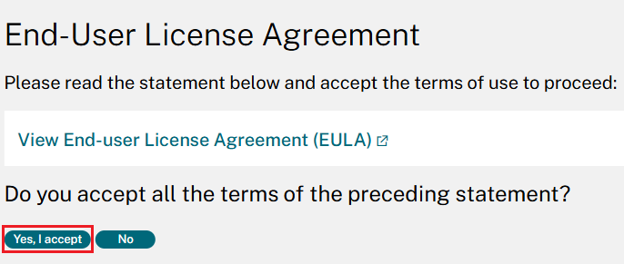
- Select Yes, I accept to accept the End-User License Agreement.
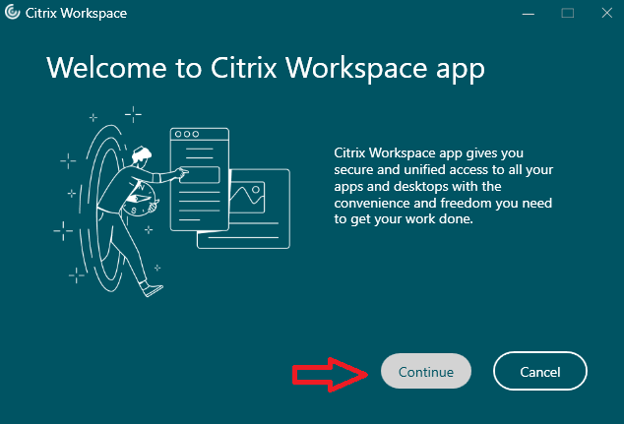
- When the Welcome to Citrix Workspace app window appears, select Continue.
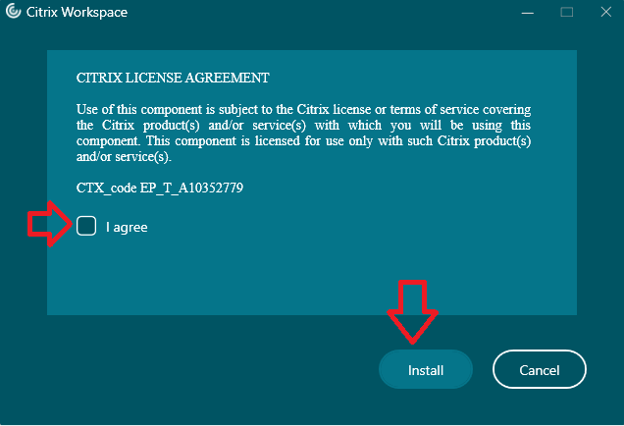
- Accept the Citrix License Agreement by selecting the checkbox next to I agree. Click Install.
- Wait for the installation to be completed.
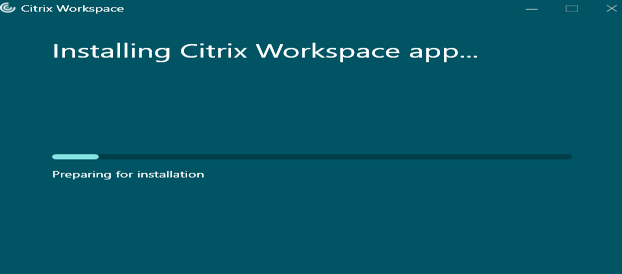
- Wait for the installation to be completed.
Step 3: Configure Citrix Workspace
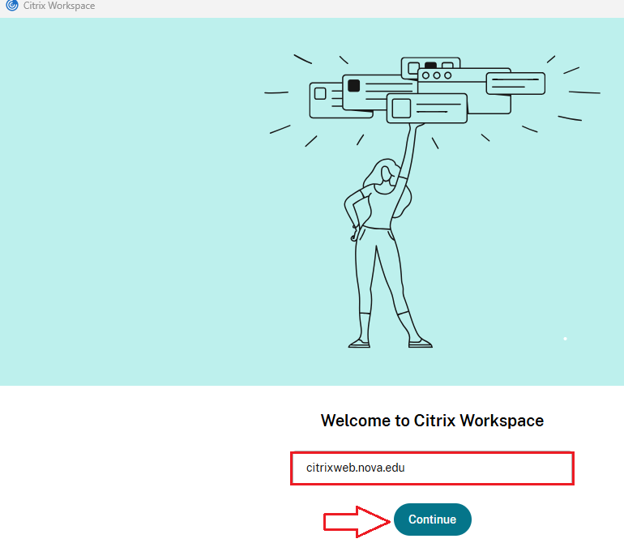
After the installation is complete, Citrix Workspace will prompt you to enter your workspace URL.
-
- Enter: citrixweb.nova.edu, click Continue.
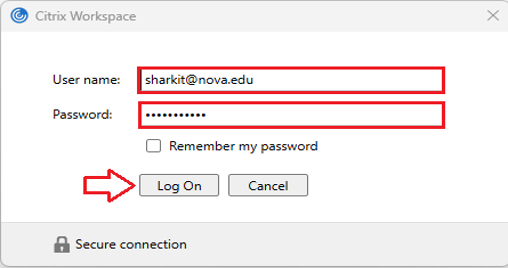
- When prompted, enter your full NSU email address and SharkLink password.
- Click Log On.
- Enter: citrixweb.nova.edu, click Continue.
Select Your Account
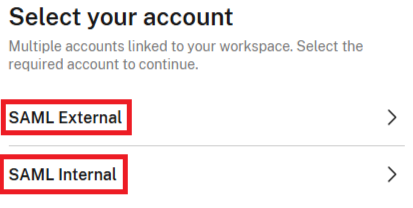
If multiple accounts are associated with your Citrix Workspace, select the appropriate account:
-
- SAML External—Select this option when accessing Citrix from off campus.
- SAML Internal—Select this option when accessing Citrix while on campus.
Note: The applications and resources available to you may vary depending on your role at NSU.
Step 4: Complete NSU Single Sign-On (SSO) and Multi-Factor Authentication (MFA)
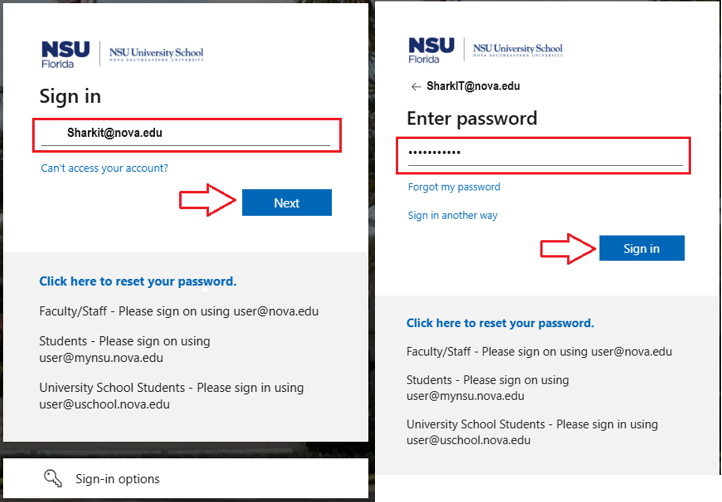
You will be redirected to the NSU SSO page.
-
- Enter your NSU email address. Click Next.
- Enter your SharkLink password.
- Complete the requested Microsoft MFA verification.
Once authentication is complete, the Citrix Workspace app will open.
Note: You can close the Citrix Workspace window after signing in. Citrix Workspace will continue running in the background.
Step 5: Add Desktop Shortcuts
Depending on your role at NSU, you may have access to different applications and resources.
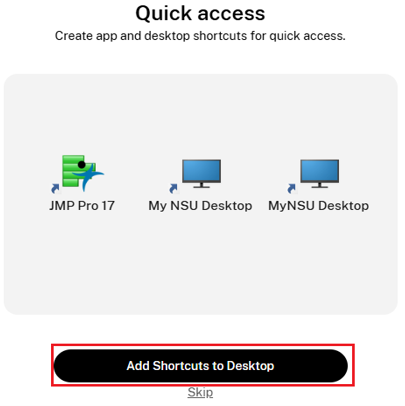
For applications you frequently use, select Add Shortcut to Desktop, when available.
This will create a shortcut on your computer's desktop for quick access to the application.
- Examples may include
- Axium
- NextGen
- NextGen EHR/EPM
- your assigned NSU work computer
Access Citrix Applications and Desktops
Once Citrix Workspace has been installed and configured, you can access your NSU applications and desktops through a web browser.
Open Microsoft Edge, Google Chrome, or Mozilla Firefox and go to the NSU Citrix Portal citrixweb.nova.edu.
Sign In
- Enter your NSU email address. Select Next.
- Enter your SharkLink password.
- Complete the requested Microsoft MFA verification.
Select Your Application or Computer
After signing in, you will see the applications and desktops assigned to your account.
Depending on your role, you may see applications such as
- Axium
- NextGen
- NextGen EHR/EPM
- your assigned NSU work computer
If you have access to more than one computer or desktop, make sure you select the correct one before launching it.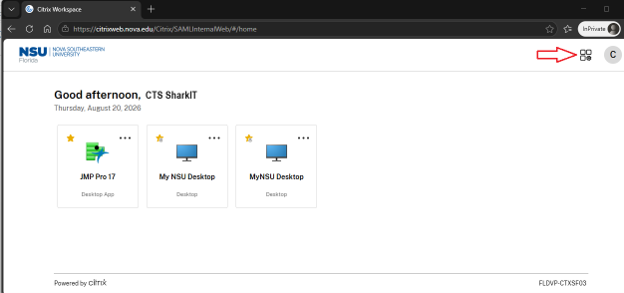
Launch the Application or Desktop
Depending on your browser, you may be prompted to download an .ica file.
-
- Download and save the .ica file.

- Locate the downloaded file.
- Select the file to launch it.

- Download and save the .ica file.
Note: If Citrix Workspace is running in the background, the selected application or desktop
will open in a new window.
You can now access your NSU application or remote computer.
Quick Access
After successfully configuring Citrix Workspace, you can create desktop shortcuts for frequently used applications when the Add Shortcut to Desktop option is available.
This allows you to launch your NSU resources without returning to the Citrix website each time.
Tip: Keep the Citrix Workspace app installed on your computer and allow it to run in the background when using Citrix applications or desktops.
Need Help?
If you are unable to install Citrix Workspace, sign in, complete MFA, or access your assigned application or desktop, contact SharkIT for assistance.
SharkLink
SharkLink is NSU's online portal. With a single username and password, students, alumni, faculty, and staff members can easily access many online university applications.
Quick Guide
Students (PDF)Microsoft Online Archive
Faculty and Staff (PDF)
Current Hours of Operation
Monday-Friday: 8:30 a.m. – 5 p.m.
Saturday: Closed
Sunday: Closed
Closed on University Holidays
Holiday Schedule
Help Number for Students:
(954) 262-4357
Toll Free:
800-541-6682 ext. 24357
Help Number for Staff:
(954) 262-0070