


A transcript is a complete representation of a student's academic record, including coursework, grades, and degrees earned. There are two types of transcripts: The official transcript, which is required for admissions, and the unofficial transcript, which contains the same information but is generally not considered endorsed. NSU issues and accepts official transcripts in both paper and electronic formats.
For information on how to order official transcripts, please see below.
- Retrieve Your NSU Identity Number
- Reset Password
- Retrieve Your International Student NSU Identity Number
Official Transcript
An official transcript is a complete representation of a student’s academic record.
Unofficial Transcript
Students can view/print an unofficial transcript at their convenience, 24/7, through SharkLink. After entering your SharkLink ID and Password, click on the Grades & Transcripts tab and select "View Transcripts" in the Unofficial Transcript section. Alumni select the Alumni page from the navigation bar in SharkLink.
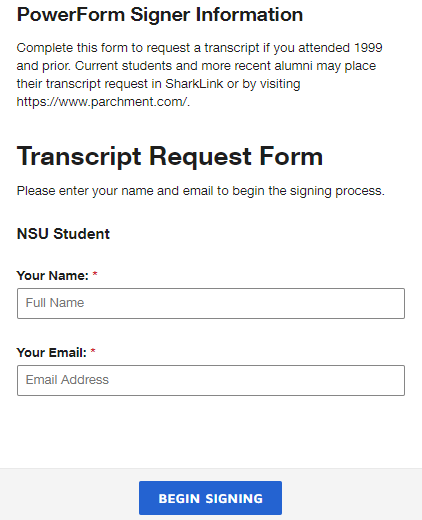
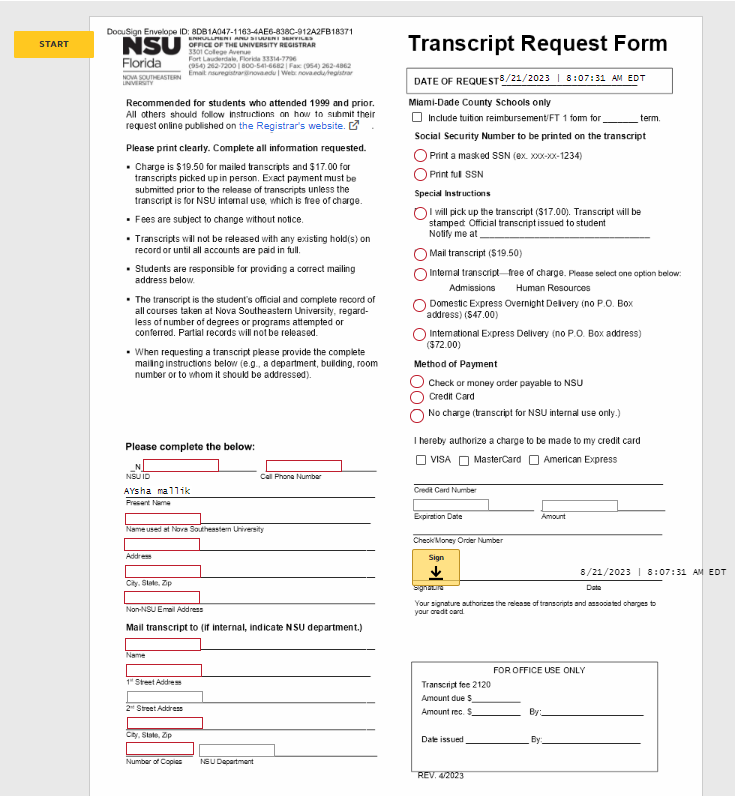
Must complete DocuSign request form located at the Nova University Registrar Page
Link: https://www.nova.edu/registrar/
- Select Forms
- Scroll down to Transcripts
(DocuSign - for attendance in 1999 and prior)
Example Image Below:

Microsoft Edge
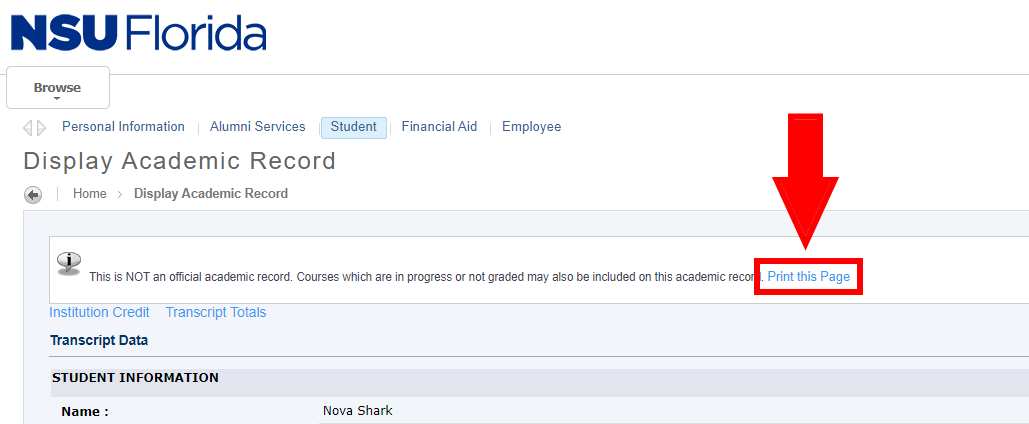
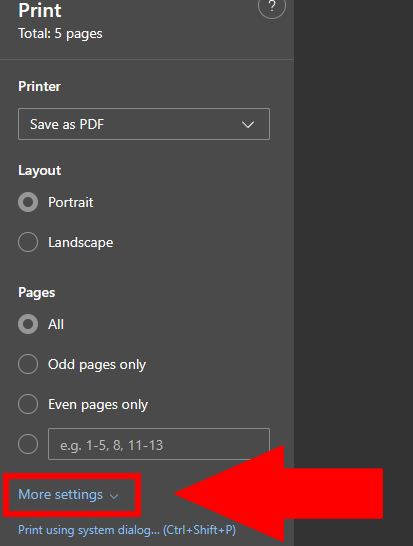
- Select “Print this Page” near the top-middle of the page.
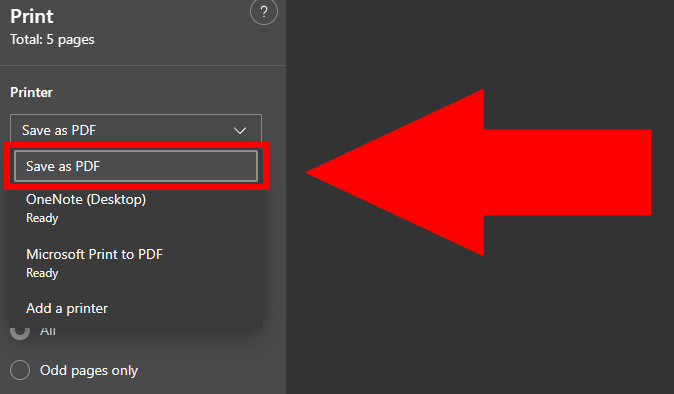
- Change the “Printer” to “Save as PDF”
- Select “More settings”
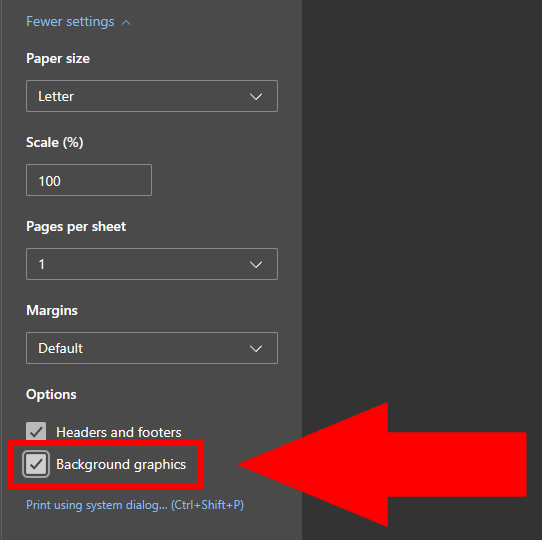
- Enable “Background graphics”.
- Save the file to any location on device.
Google Chrome
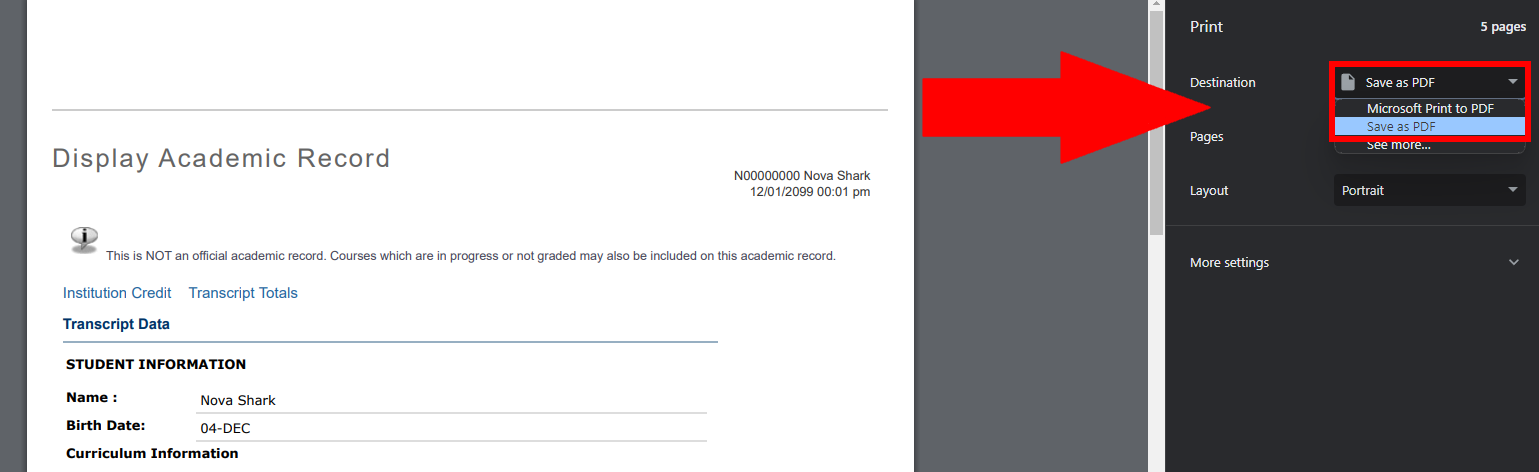
- Select “Print this Page” near the top-middle of the page.

- Change the Destination to “Save as PDF”.
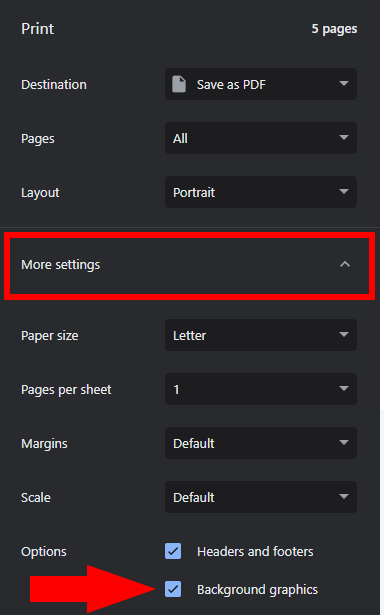
- Click on “More settings” and ensure that “Background graphics” is enabled.
- Save the file to any location on device.
FireFox
- Select “Print this Page” near the top-middle of the page.

- Change the Destination to “Save to PDF”
- Click on “More settings”
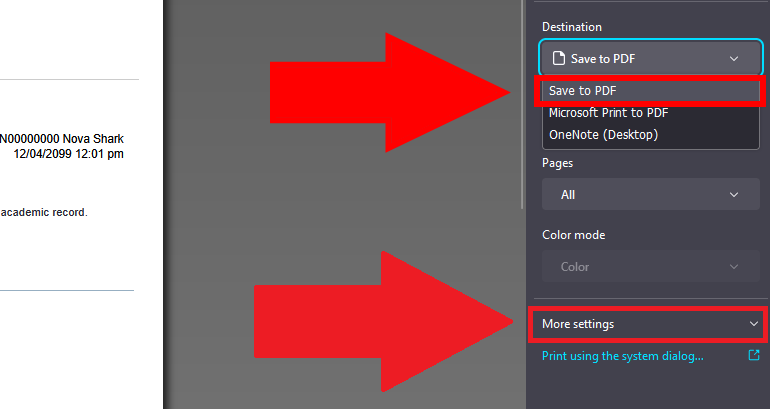
- Enable the “Print backgrounds” option.
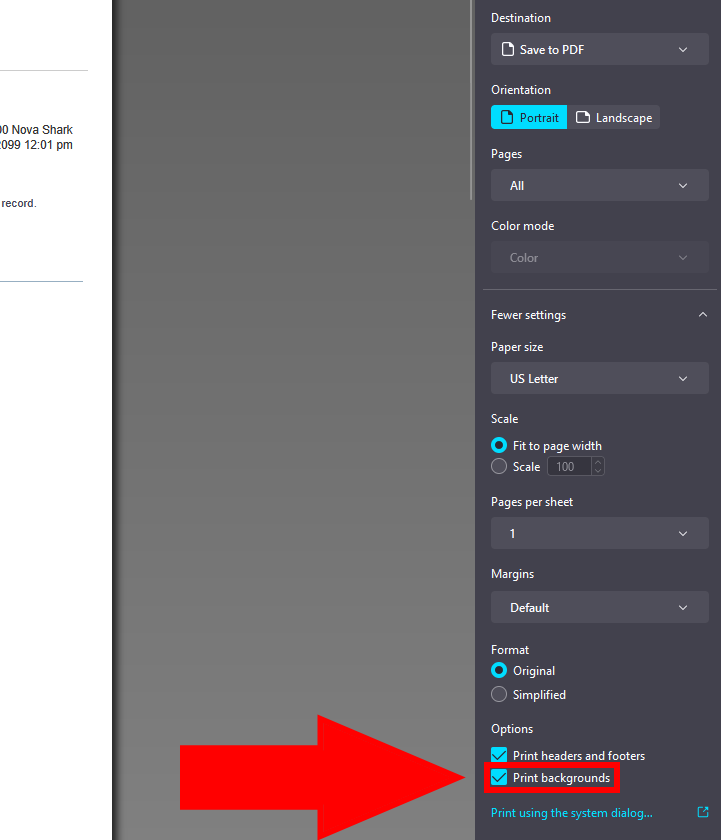
- Save the file to any location on device.
SharkLink
SharkLink is NSU's online portal. With a single username and password, students, alumni, faculty, and staff members can easily access many online university applications.
Quick Guide
Students (PDF)Microsoft Online Archive
Faculty and Staff (PDF)
Current Hours of Operation
Monday-Friday: 8:30 a.m. – 5 p.m.
Saturday: Closed
Sunday: Closed
Closed on University Holidays
Holiday Schedule
Help Number for Students:
(954) 262-4357
Toll Free:
800-541-6682 ext. 24357
Help Number for Staff:
(954) 262-0070